How to Use Krea.ai for Stunning AI Art (Even If You’re a Beginner)
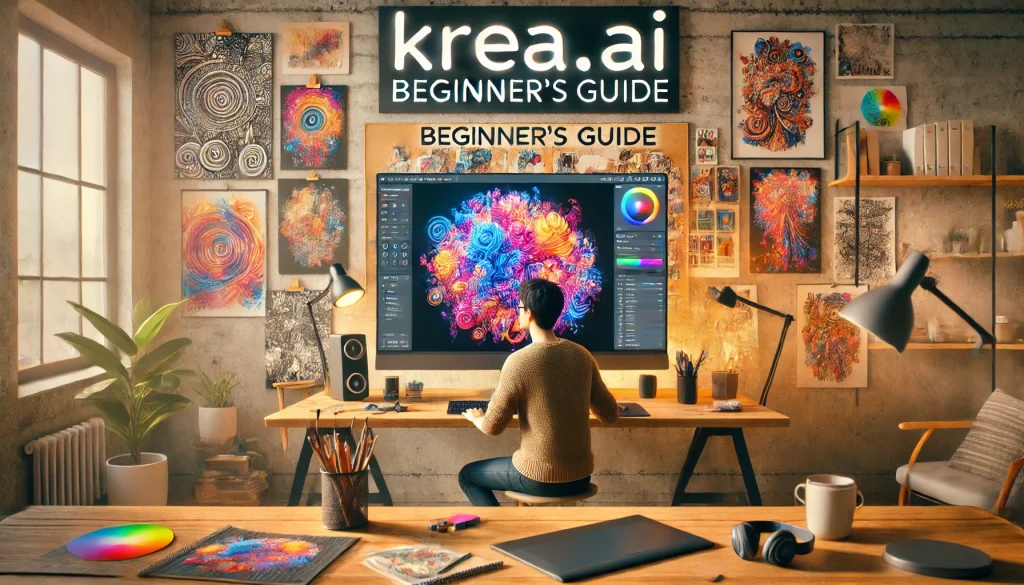
Ever wished you could make cool artwork without picking up a pencil or opening a complicated design app? That’s where Krea.ai steps in. It turns plain words into impressive images, and yes — even if you’ve never made a single piece of digital art before.
So how do you actually use Krea.ai to create stunning AI art, especially if you’re just starting out? You don’t need to be a tech whiz or a designer. All you need is curiosity and a few simple clicks.
What Is Krea.ai and Why Is It Great for AI Art Beginners?
What does Krea.ai actually do for beginners?
Krea.ai is a website that lets you create art using just words. You type something like “a cat sitting in a teacup made of clouds,” and boom — it gives you a visual version of that idea. No need to draw, download heavy software, or watch long tutorials.
It’s built to feel easy. The layout is clean, the buttons are clear, and the process is smooth. It’s kind of like writing a sentence and having it painted for you in real time.
Most people starting out in AI art feel a bit overwhelmed. Krea.ai removes that wall by keeping things simple. It’s perfect if you want to test ideas, create quick visuals, or just have fun.
And here’s a bonus: you don’t have to understand art theory. No color wheels. No layers. Just your words and a few clicks.
How Do I Start Using Krea.ai as a Complete Beginner?
What’s the first thing I should do on Krea.ai if I’ve never used it before?
First, go to the Kreaai.co.in website. You’ll need to sign up with your email or log in with Google. That’s it. No complex setup, no scary interface.
Once you’re in, you’ll land on the canvas page. This is where the magic happens. There’s a box where you can type your idea, and the image will start forming on the right.
Start small. Try something like “a sunset over a quiet lake.” Watch how the AI brings it to life. It’s fast and feels almost like watching someone sketch in seconds.
If you mess up or want to change something, you don’t have to start over. Just adjust your sentence and watch it refresh the image.
You’ll find buttons to control the style, quality, and even the format. But don’t worry about those right away. You can make solid images by just using the basics.
And don’t feel bad if your first few images look weird. That’s half the fun.
What Tools and Features in Krea.ai Help Me Create Stunning AI Art?
Which tools should beginners focus on to make their art look better?
The best part about Krea.ai is that most of the tools are already beginner-friendly. The platform does the heavy lifting for you. But there are a few features you’ll want to try early on.
The prompt box is your starting point. Whatever you type here becomes the base for your art. The clearer your description, the better your image will turn out. For example: “a robot reading a book in a snowy forest at night” works way better than just “robot.”
Then there’s the style section. This lets you change how your image looks — like sketch, watercolor, oil painting, or even cartoon. It’s like changing the filter on your photo, but way more detailed.
Krea.ai also gives you real-time image feedback. That means every time you tweak your sentence, you don’t wait minutes to see changes. It updates fast, which helps you experiment without getting stuck.
There’s also a history panel that saves your recent images. So if you liked something you made three tries ago, you can go back and grab it without typing the prompt again.
One thing that’s often overlooked: you can lock parts of the image if you only want to change small details. That’s helpful when you like 90% of your artwork and just want to fix one spot.
It’s a simple platform, but there’s power hiding under the surface — like a microwave with secret buttons you didn’t know you needed.
How Do I Write Good Prompts in Krea.ai to Generate Beautiful AI Art?
What kind of sentences work best for great results in Krea.ai?
Think of Krea.ai like a visual chef. If you throw in vague ingredients, the dish turns out bland. But give it the right mix of ideas, and you’ll get something worth saving.
Start by being clear. For example: “a frog playing guitar in a moonlit swamp” gives more to the AI than just “frog.” Try to include the subject, action, setting, and mood. The more complete your sentence, the better your art.
Avoid trying to be too poetic or mysterious. AI isn’t great at reading between the lines. So instead of “a tale of love under stars,” say “two people holding hands under a starry sky.” Simple wins.
If your result looks strange, don’t panic. Adjust your words slightly. Even switching “forest” to “dark forest with tall trees” can make a big difference.
You can also use commas to stack ideas. Try “castle on a mountain, lightning in the sky, stormy clouds.” The order matters less than clarity.
And yes, spelling matters. Krea.ai might give you weird results if your prompt is full of typos or odd phrasing. Don’t worry, though — it’s more forgiving than your grammar teacher.
Can I Edit and Improve the AI Art After Generating It in Krea.ai?
What can I do if my image looks almost good, but not quite?
If your AI art comes out looking like a dream gone wrong, don’t toss it out just yet. Krea.ai gives you ways to fix and polish it without starting over.
There’s an enhance tool that sharpens the image, smooths the colors, and bumps up the quality. It’s kind of like putting glasses on your blurry art.
You can also use the brush tool to erase or fix parts of the image. It’s not like Photoshop with a million layers, but it does the job if something looks off.
Let’s say your image looks great but has one weird spot — like a tree floating in the sky. You can lock the rest of the image and only update the problem area. No need to redo the whole thing.
Another great option is the background edit. You can swap out the sky, change the vibe, or remove clutter without affecting the main subject.
Beginners usually skip these tools because they sound advanced. Don’t. These are the shortcuts to making your good images even better.
Plus, clicking around until it looks right? That counts as editing.
How Do I Save or Share the AI Art I Create with Krea.ai?
What’s the easiest way to download or share my artwork once it’s done?
Once you’re happy with your masterpiece, hit the download button. It saves your image to your computer as a high-quality file — usually PNG or JPG.
You don’t need to mess with file formats if you’re just using it for social media or a project. The default settings work fine.
There’s also a share option if you want to post directly from Krea.ai to platforms like Instagram or Twitter. You can copy a link or grab the image and upload it yourself.
If you’re using the image in a presentation, blog, or personal project, go ahead and insert it like any regular photo.
Just remember: if you’re using a free plan, your image might have a small watermark. Want to ditch that? You’ll need a paid account. But it’s optional — you can still create and save images without spending anything.
What Are Some Common Mistakes Beginners Make When Using Krea.ai for AI Art?
What should I avoid doing if I want better results as a new user?
Mistake #1: Writing super short prompts. Typing “tree” will give you a tree, sure, but it might look like something from a haunted potato farm.
Mistake #2: Trying to be too fancy. AI doesn’t understand poetry. Keep your descriptions clear and simple.
Mistake #3: Ignoring the styles. There’s a reason the style options are there. Try switching styles if your image looks boring.
Mistake #4: Giving up too fast. Your first image might look like it was drawn by a raccoon with a crayon. That’s normal. Just tweak your prompt and go again.
Mistake #5: Forgetting to save. If you love something, download it. Don’t assume it’ll be there tomorrow.
What Makes Krea.ai Different from Other AI Art Tools for Beginners?
Why is Krea.ai a better starting point for people new to AI art?
Krea.ai is built for speed and simplicity. You don’t wait minutes for a single image. You type, and the result shows up almost instantly.
Most other tools either look too advanced or need you to learn strange settings first. Krea.ai skips that. It works more like a fun app than a technical tool.
Also, the real-time preview is a huge deal. You can try different prompt ideas and instantly see what works. It turns learning into play.
For beginners, this is gold. You don’t feel overwhelmed. You feel like you’re creating.
How Can I Improve My AI Art Skills Over Time Using Just Krea.ai?
How do I get better at making awesome art with Krea.ai?
The best way? Keep typing and testing.
Make one new image every day, even if it’s silly. Try prompts about animals, places, weird ideas, whatever pops into your head.
Pay attention to what works. Some words give better results than others. Keep a list of the ones that look great.
Try new styles too. If you only stick to one, your art starts to feel the same. Mix it up. Have fun.
You’ll get better without even noticing. One day, your “just for fun” art might actually look like something you’d frame.
Final Tips for Beginners to Create Truly Stunning AI Art Using Krea.ai
What are the best tips for beginners to get the most out of Krea.ai?
- Be clear with your words. Pretend you’re telling a robot what to paint.
- Use the style options. They exist for a reason.
- Don’t overthink it. Sometimes the weird images turn out to be the coolest.
- Save your best work. You’ll want to show it off later.
- Keep going. The more you play with it, the better you’ll get.